SOLIDWORKS keyboard shortcuts: the complete list — and the method that turns it into an hour a day
Published 14 September 2026 — the default shortcuts family by family (views, file, sketch, assembly, drawing), the two keys most users never switch on, mouse gestures, and above all the part nobody does: creating your own shortcuts and rolling them out to the whole engineering department.
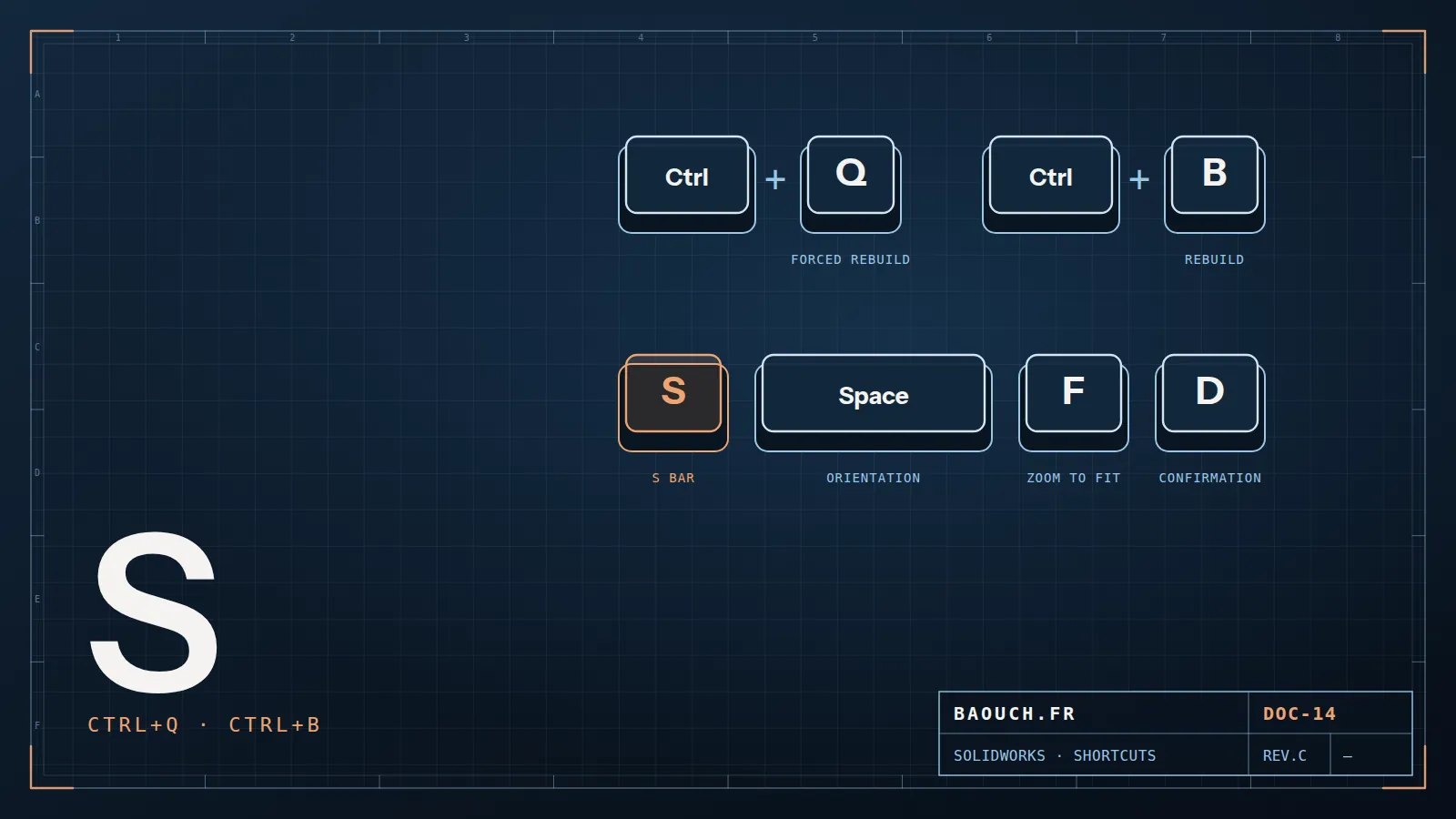
Let's start with what you came for. If you remember only twelve shortcuts, remember these — they are the commands a user triggers dozens of times a day, and they are identical across all recent SOLIDWORKS versions:
The habit to adopt right now: never hunt for a shortcut on a forum. Tools > Customize > Keyboard tab shows the exact list for your workstation, filterable and printable. It's the only source that accounts for your own customisations and your version.
1. The complete list, family by family
Here are the shortcuts shipped by default, grouped by use rather than alphabetically — because that is how they stick. They are stable from version to version; only your own customisations can have replaced them.
Views and navigation — the ones in constant use
On the mouse side, three combinations replace half the view toolbar: wheel to zoom, wheel pressed to rotate, Ctrl + wheel pressed to pan.
File, editing and rebuild
Ctrl + Q is the shortcut I type first when a client tells me "the model is wrong". A full forced rebuild surfaces the errors a normal rebuild leaves asleep — and it saves a lot of pointless investigation into symptoms that no longer exist.Mohamed Omar Baouch
Sketch, assembly and drawing
2. The S key: the one shortcut that genuinely changes your day
If I could pass on only one thing in training, this would be it. The S key pops a small toolbar right under the cursor, and its contents are context-aware: the bar differs between part, sketch, assembly and drawing. The software knows where you are and offers the commands for that context.
Why it beats a plain keyboard shortcut: a shortcut makes you memorise one combination per command, whereas the S bar gives you ten commands for a single key, without your eyes leaving the modelling area. The mouse trip to the top of the screen — three seconds, two hundred times a day — disappears.
It customises like a normal toolbar: right-click it, Customize, then drag and drop the commands you actually use. Do it for each context, once, in ten minutes. It's the best time investment I know of in SOLIDWORKS.
Its cousin: the D key, which brings the confirmation corner and the PropertyManager next to the cursor. Same logic, same win — you stop travelling to the green check in the corner of the screen at the end of every feature.

3. Mouse gestures: often faster than the keyboard
A widely ignored feature: hold the right mouse button and drag. A wheel of commands appears, and simply moving in a direction triggers one. You can set the wheel to 4, 8 or 12 gestures under Tools > Customize > Mouse Gestures.
My advice after dozens of rollouts: start with 4 gestures, not 12. Four directions (up, down, left, right) are learned in a day and become muscle memory. Twelve, nobody remembers — and the user drops the whole feature within a week.
The sensible division of labour in practice: mouse gestures for view commands (isometric, normal to, zoom to fit), the S bar for modelling features, and keyboard shortcuts for whatever the left hand can do while the right stays on the mouse.
4. Creating your own shortcuts without breaking things
Everything happens in Tools > Customize > Keyboard tab: find the command, click in the shortcut column, type the combination. SOLIDWORKS warns you if it's already taken. Three field-tested rules:
- Never reassign universal Windows shortcuts (Ctrl+C, Ctrl+V, Ctrl+S, Ctrl+Z). The day you troubleshoot a colleague's machine — or the reverse — the time lost wipes out months of gains.
- Favour keys the left hand can reach alone (Q, W, E, R, A, S, D, F, Z, X, C, V). The right hand should never leave the mouse: that's the whole point.
- Add five, not fifty. A shortcut you have to hunt for costs more than a menu you know. Add five, live with them for a month, then repeat. Muscle memory can't be forced.
Once your settings are in place, export them immediately (see below). A workstation gets reinstalled, an update goes wrong: with no backup, you start from scratch.
5. Rolling out the same shortcuts across the whole design office
This is where the topic stops being an individual trick and becomes a matter of method — and it's the part companies almost always skip. The Copy Settings Wizard, shipped with SOLIDWORKS, exports your keyboard shortcuts, toolbars, S bar, mouse gestures and system options into a .sldreg file.
What that concretely changes for a team:
- A newcomer is productive on day one on a workstation configured like their colleagues', instead of rebuilding their habits over six months.
- Peer troubleshooting works again: when everyone has the same S bar, you can lean over a colleague's screen and understand what they're doing.
- The .sldreg file becomes a deliverable: versioned like a drawing template or a component library, it belongs to the methods baseline just as much as part numbering does.
The nuance that avoids a revolt: impose a common baseline (views, core features, the S bar) and let everyone add their personal shortcuts on top. A fully locked profile gets bypassed within a week; a common baseline is adopted by everyone.
6. When a shortcut changes nothing: the real hidden cost
Let's be honest about orders of magnitude, because plenty of articles promise miracles. A shortcut saves one to three seconds per command. Multiplied by several hundred daily commands, the total is real — but it is nowhere near what waiting costs.
If your assembly takes three minutes to open, if saving into the vault freezes the workstation, if a drawing rebuilds while you stare at the ceiling: no shortcut will save you. You're not working on the right problem. The time sits elsewhere — in hardware, network or PDM configuration:
- Open and save delays usually come from the vault and the network — I detailed the real causes in Slow SOLIDWORKS PDM: the 7 real causes.
- Display and rebuild slowness is decided on the workstation: CPU, certified graphics card, SSD — see the SOLIDWORKS hardware configuration guide.
- And time lost hunting for the right file is fixed neither by keyboard nor by hardware: that's a part numbering and properties problem.
The right way to see shortcuts: they remove the friction of the gesture, not the flaws of the installation. Do both — but in that order of priority.
7. FAQ
How do I see the list of all SOLIDWORKS keyboard shortcuts?
Tools > Customize > Keyboard tab. The list shows every command with its current shortcut, filters by category and keyword, and prints. It beats any cheat sheet found online, since it reflects your version and your customisations.
What exactly does the S key do?
It opens the shortcut bar under the cursor, with different contents in part, sketch, assembly and drawing. It customises by drag and drop, and it has the best effort-to-gain ratio in the whole software.
My shortcuts stopped working — what now?
Three causes, by frequency: a clash with a global Windows or graphics-driver shortcut; a settings profile overwritten during an update; a customisation left behind on the old workstation. Check the Keyboard tab first, then re-import your .sldreg file.
How do I move my shortcuts to a new PC?
With the Copy Settings Wizard: it exports shortcuts, toolbars, mouse gestures and system options into a .sldreg file that you import on the new machine. It's also the way to distribute a common baseline to an entire team.
Do I need a specific keyboard or mouse?
No. A mouse with a clickable wheel covers everything described here. 3D devices (SpaceMouse and similar) are pleasant during large assembly reviews, but they replace neither the S bar nor mouse gestures — they add to them.
Are shortcuts enough to fix SOLIDWORKS being slow?
No, and that's the most important point in this article. A shortcut saves seconds on a command; it does nothing about a three-minute assembly open. When waiting dominates, the subject lies elsewhere.
The one-line summary: switch on the S bar, set four mouse gestures, add five personal shortcuts, export it all as .sldreg — and if you're still waiting in front of the screen, the keyboard was never the problem.Mohamed Omar Baouch